WooCommerce
Running a WooCommerce store? Sellado adds the products and updates stock
Connect the store with an API key, with no plugin to install, and publish products from Sellado with their photos. Paid orders come in every 10 minutes, and a sale on another platform lowers the stock in your store.
10 active products free. No card.
What Sellado does and what you do
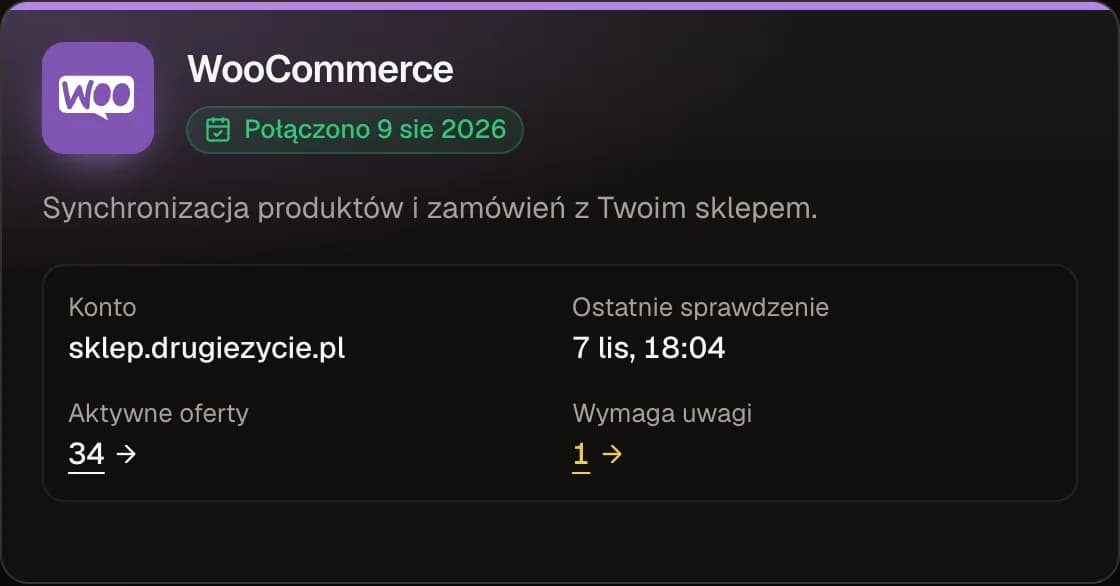
Sellado connects to the store through WooCommerce's REST API and looks after the products you publish from it.
Sellado
- Creates and updates products with photos, description, price, stock, categories, tags and attributes.
- Publishes a product straight away or saves it as a draft in the store.
- Fetches paid orders every 10 minutes, with what the buyer paid, and records the sale.
- When you mark a parcel as sent, it completes the order and adds a note for the buyer.
You, in the store
- Run the store: hosting, payments, delivery methods and its look stay with you.
- Create categories, tags, attributes and shipping classes in WooCommerce. Sellado fetches them.
- Enter store prices with VAT, because that's what Sellado sends. If the store is set otherwise, Sellado warns you.
- Answer store customers as you do now, because their messages don't reach Sellado.
Connecting
How to connect a WooCommerce store
- Create a Sellado account.
- In WordPress, open WooCommerce → Settings → Advanced → REST API and create a key with “Read/Write” permissions.
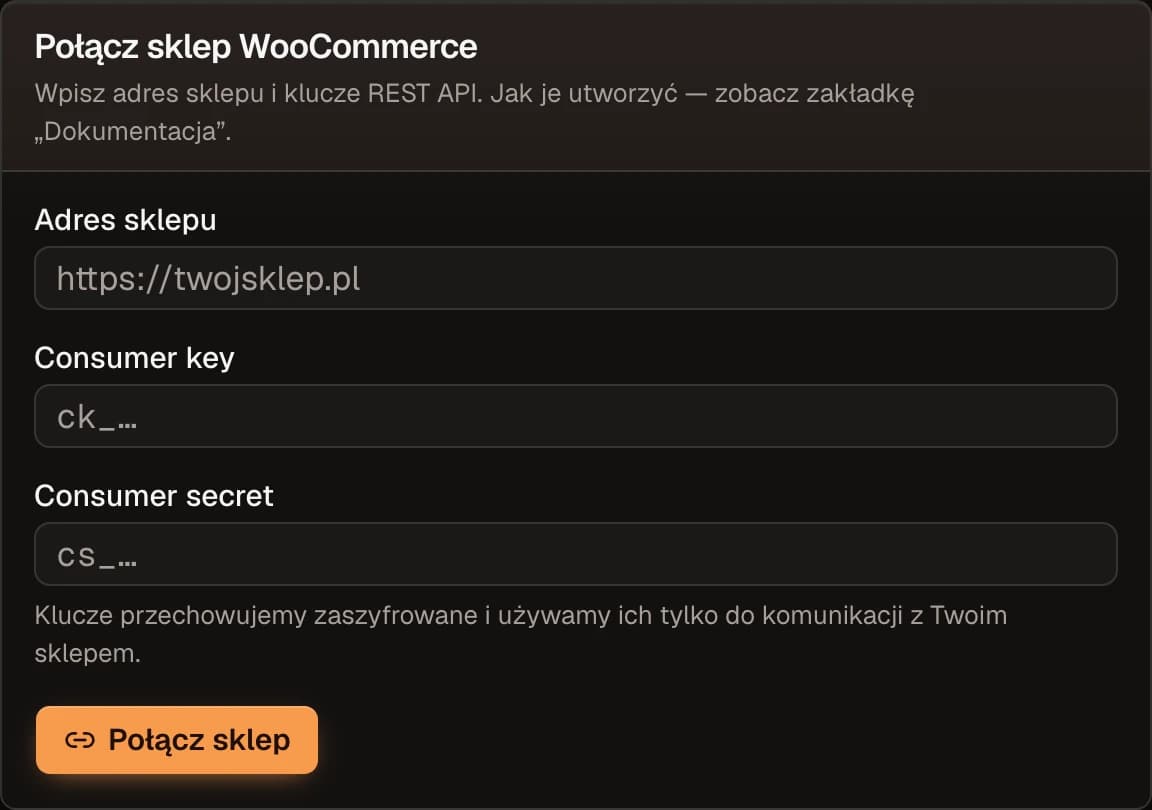
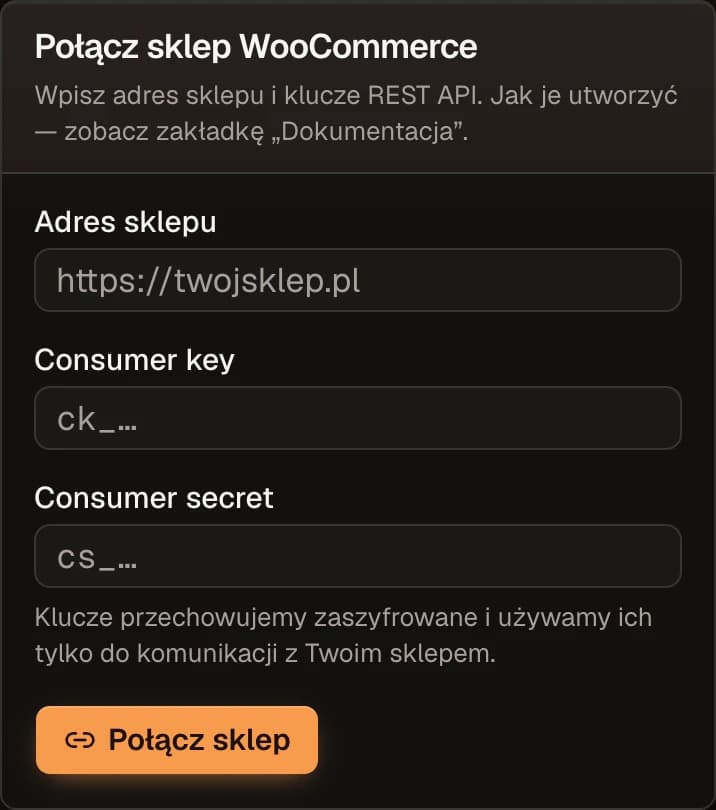
- Under Integrations → WooCommerce, enter the store's address and both keys. Sellado checks the connection and fetches the store's data.
The store must be on a public HTTPS address and use the same currency as the company in Sellado. Permalinks must be on in WordPress.
Publishing
How to publish a product to your store from Sellado
- Add the product with photos. The AI can suggest a description and a price, with links to the offers it found.
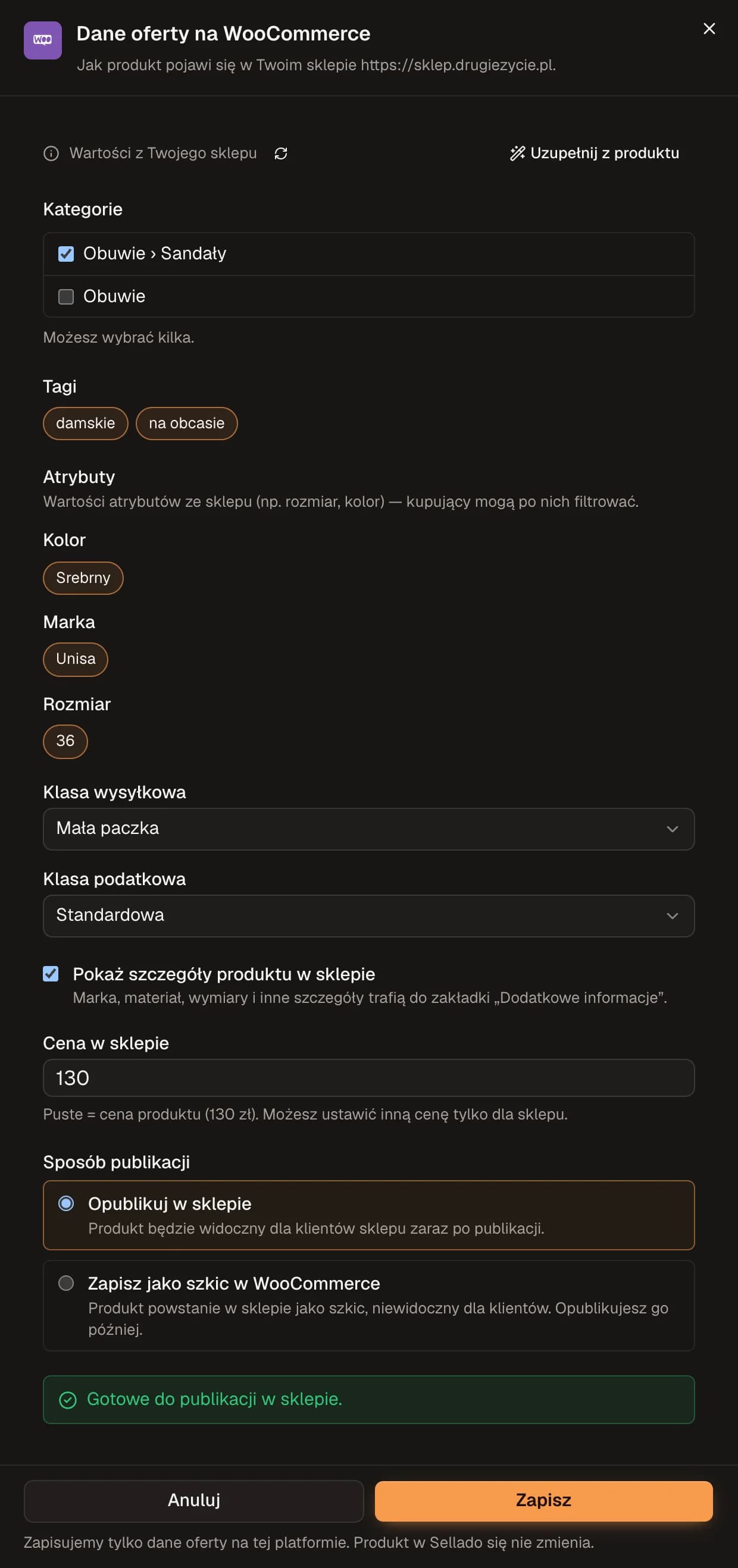
- Under “Listing details”, choose categories, tags, attributes, and the shipping and tax class. “Fill in from product” completes what matches the product's details.
- Click “Publish in the store”. The store downloads the photos, and the product is visible straight away or waits as a draft.
- “Hide” turns the product into a draft customers can't see. You can publish it again later.
Sellado sets the store's price, so publishing or changing the price removes any sale price set in WooCommerce.
After the sale
What happens when something sells
A sale in your store
The paid order goes on the “To ship” list with the buyer and delivery method. Stock on your other platforms goes down.
A sale elsewhere
Sellado lowers the stock in your store. After the last unit the product stays in the store as out of stock, because Sellado turns backorders off.
Profit and returns
You see what's left after the purchase cost. An order cancelled or refunded in the store stops counting in revenue, and the units go back on sale.
Safety
What Sellado can access in your store
It uses the key for
- Products: reading and creating them, changing prices and stock
- Categories, tags, attributes, shipping and tax classes
- Orders: amounts, status, the buyer's name and delivery method
- The currency and whether prices include tax
Sellado doesn't:
- install plugins or change the store's look
- publish products until you click
- change prices without your approval
- save the buyer's address or phone with a sale
A “Read/Write” key opens the store's API, so Sellado stores it encrypted. You can withdraw access by deleting the key in WooCommerce or disconnecting the store in Sellado.
Questions about WooCommerce
What does it cost?
The Free plan holds 10 active products without a card, and sold products don't take a place in it. You pay for the store, hosting and payments as you do now.
Do I have to install a plugin?
No. All it takes is a REST API key, which you create in WooCommerce's settings.
What about the products already in my store?
The import shows all your products and you pick which to bring over, with photos and sales history. A product with the same SKU or EAN as one in Sellado links to it, and you decide about similar ones before importing.
Does Sellado handle variants?
No. Sellado doesn't import variable, grouped or external products, so they stay in the store unchanged. You add each size or colour in Sellado as a separate product.
What about my WooCommerce promotions?
Products published from Sellado carry Sellado's price, and a sale price set in the store goes when you publish or change the price. You can set a store-only price under “Listing details”.
My store's prices exclude VAT. What then?
The connection works, but WooCommerce adds VAT to Sellado's prices, which already include it. Sellado warns you and names the setting to change. Sellado doesn't convert prices.
Can the store use euro?
Yes, if the company in Sellado uses the same currency. You can choose złoty, euro or dollars, and Sellado won't connect a store in another currency.
I have two stores. Can I connect both?
Yes. One Sellado account can have several companies, and each company connects one store. The number of companies depends on the plan.
Sellado can't reach my store. What should I check?
Check the store's address, HTTPS and permalinks in WordPress. A firewall or security plugin can also block requests to the API.
WooCommerce is a trademark of its owner. Sellado isn't affiliated with or approved by WooCommerce.
Sellado on other platforms
Add your first item and see what Sellado does with it
10 active products free. No card.