Allegro
Selling on Allegro? Sellado lists the offer and works out your profit after fees
Connect your business account, then list and change offers from Sellado. Every 10 minutes Sellado fetches orders, and it adds the fee once Allegro has charged it. You see the profit on each sale, and stock on your other platforms goes down by itself.
10 active products free. No card.
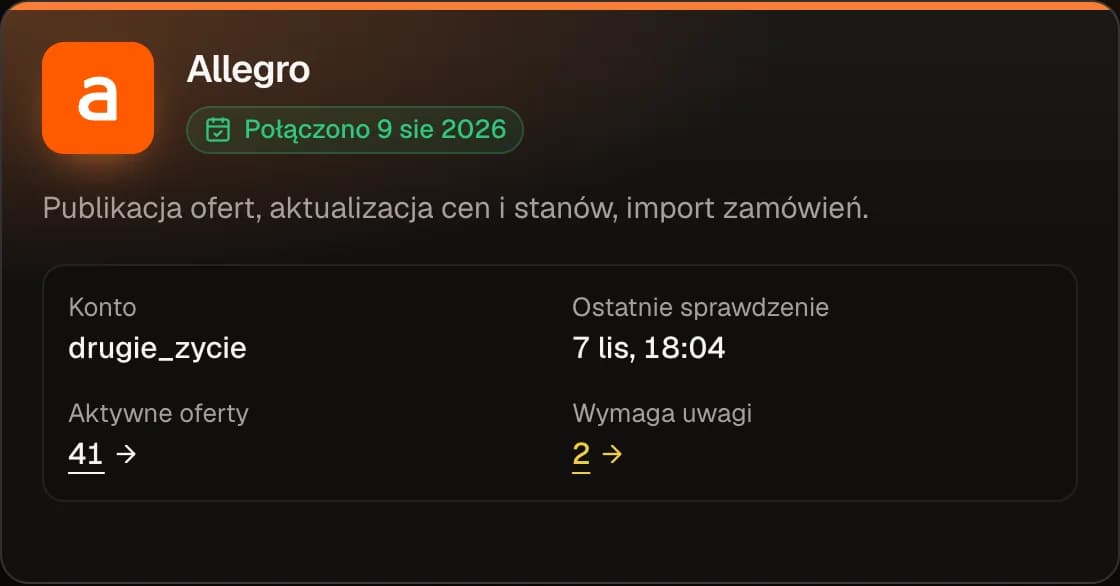
What Sellado does and what you do
Sellado connects to Allegro through its API. Some settings stay on Allegro, and you change them there.
Sellado
- Lists, updates and ends offers with their photos, parameters, price and quantity.
- Suggests the Allegro category and fills in parameters from the product's details.
- Fetches orders with their delivery cost every 10 minutes, and adds the fee once Allegro has charged it.
- Shows buyers' messages and sends your replies.
- Gives Allegro the tracking number when you mark the parcel as sent.
You, on Allegro
- Have a business account on Allegro, complete your seller details and pass verification.
- Create shipping rates, return and warranty policies, and producer details. You pick them from a list on each offer.
- Pay Allegro's fees, and Sellado counts them in your profit.
- Send the parcel as you do now, because Sellado doesn't print labels. Yet.
- Handle post-sale discussions and disputes on Allegro.
Connecting
How to connect your Allegro account
- Create a Sellado account.
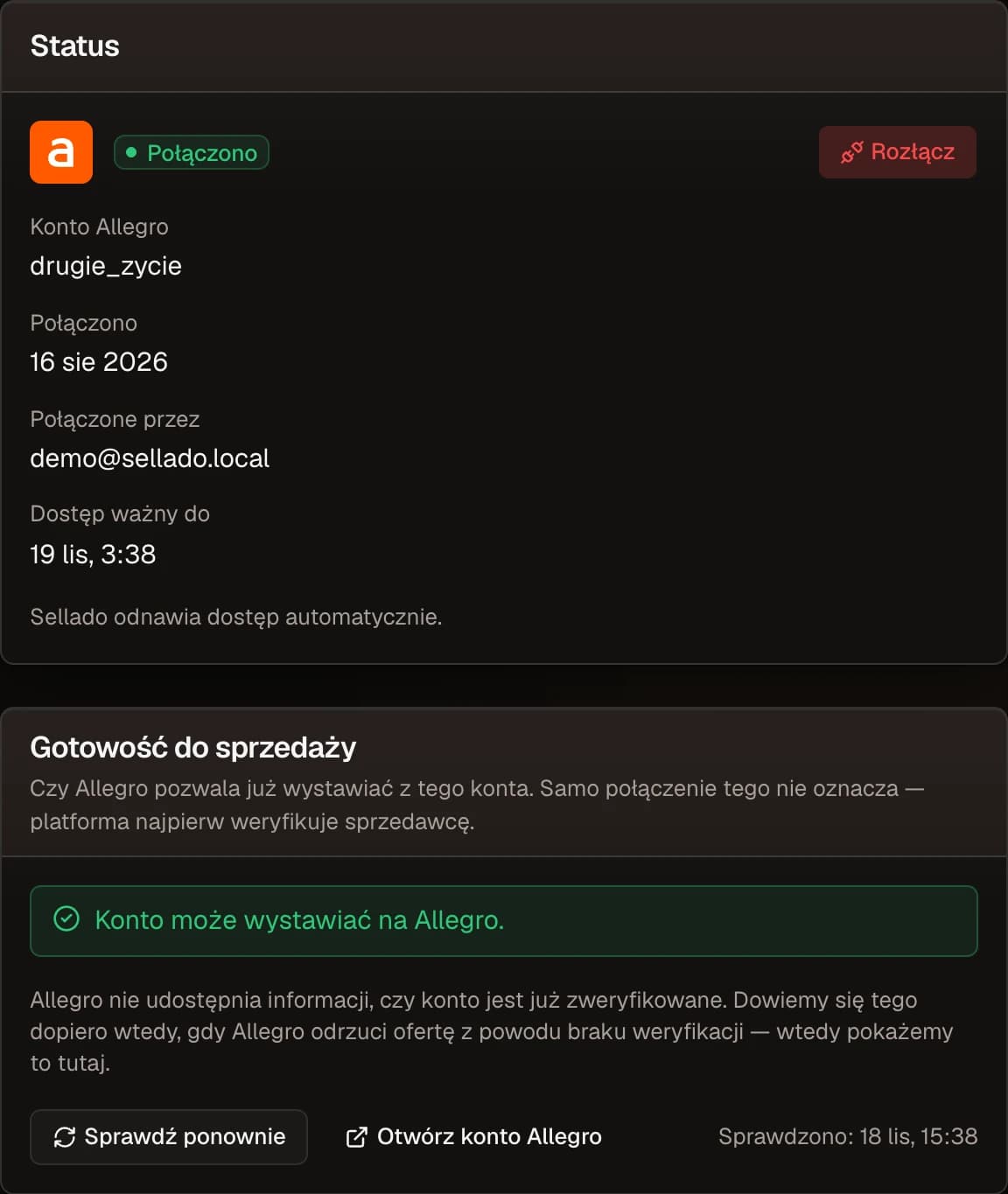
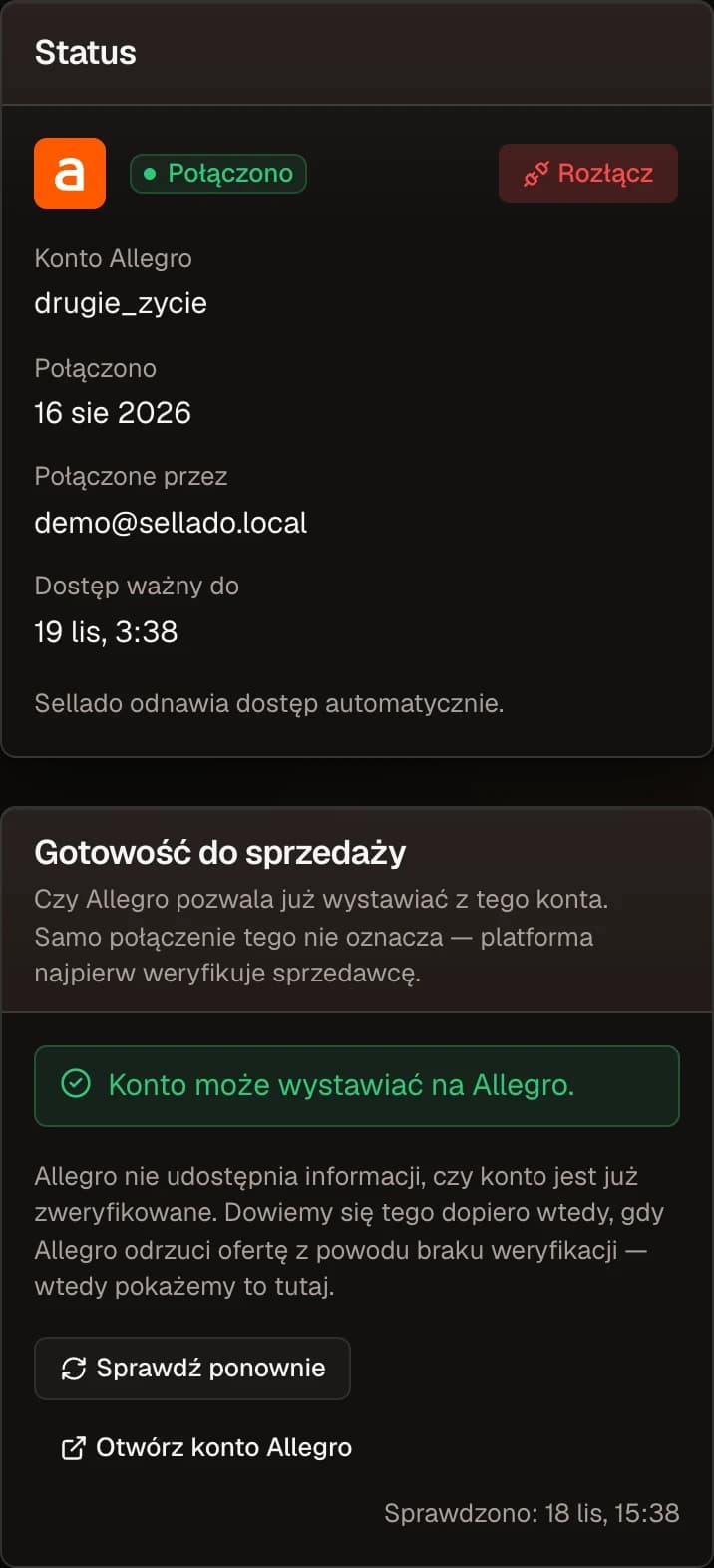
- Under Integrations → Allegro, click “Connect”, sign in on Allegro and approve access.
- Sellado fetches your shipping rates, return and warranty policies, guarantees and producers.
You don't need API keys, and you enter your password only on Allegro's site. You can withdraw access in Sellado or in your Allegro account settings.
Listing
How to list an offer on Allegro from Sellado
- Add the product with photos. The AI can suggest a description and a price, with links to the offers it found.
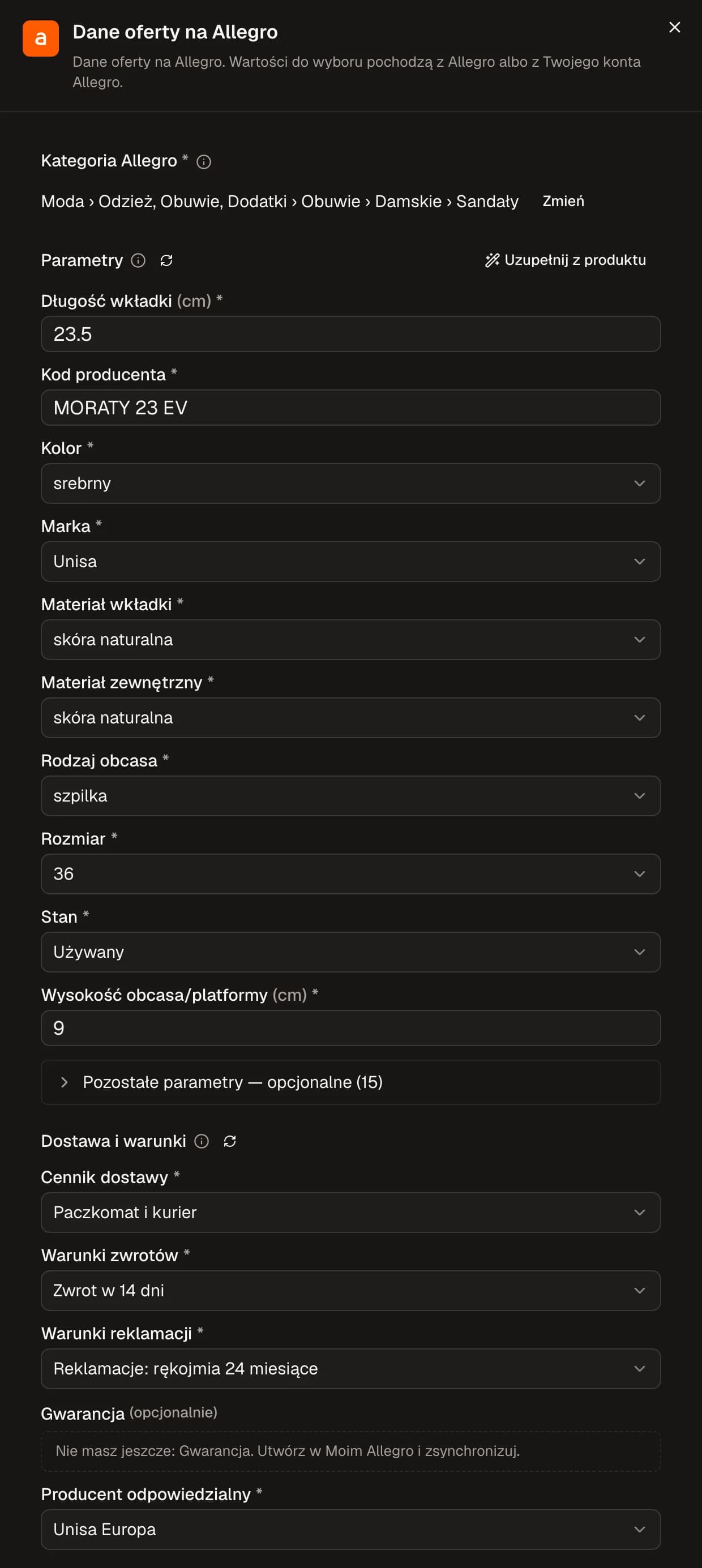
- Under “Listing details”, choose the category, parameters, shipping rate and policies. The price on Allegro can differ from the product's.
- Click “List on Allegro”. The offer can go on sale straight away or stay on Allegro as a draft.
- Allegro reviews the offer, which takes from minutes to hours. Sellado tells you when it's live or rejected, and why.
Sellado sends the product's new price and quantity to Allegro by itself. An offer with its own Allegro price keeps that price.
After the sale
What happens when something sells
A sale on Allegro
The order goes on the “To ship” list with the buyer, delivery method and Allegro's deadline. Stock on your other platforms goes down.
A sale elsewhere
Sellado lowers the quantity on the Allegro offer. After the last unit it ends the offer, so the same item doesn't sell twice.
Profit and returns
Profit counts the purchase price, your own costs and the fee. An order cancelled or returned on Allegro stops counting in revenue, and the units go back on sale.
Safety
What Sellado can access on Allegro
It has access to
- Your account name, so accounts don't get mixed up
- Your offers: it reads, creates, changes and ends them
- Shipping rates, return and warranty policies, read only
- Orders and charges: amounts, fees, the buyer's name and delivery method
- Buyers' messages and your replies
Sellado doesn't:
- learn your Allegro password
- list offers until you click
- change prices without your approval
- save the buyer's address or phone with a sale
Sellado stores the account access details encrypted. If Allegro refuses them, the company's admin gets a notification and the integration waits to be connected again.
Questions about Allegro
What does it cost?
The Free plan holds 10 active products without a card, and sold products don't take a place in it. You pay Allegro's fees as you do now.
What about the offers I already have on Allegro?
The import shows all your offers and you pick which to bring over, with photos and sales history. An offer with the same SKU or EAN as a product in Sellado links to it, and you decide about similar products before importing.
Can I list many offers at once?
Yes, on the paid plans. Select the products on the list and choose Allegro, and you see the result for each one. A product without its offer details waits until you add them.
Can the price on Allegro differ from elsewhere?
Yes, you can set a dedicated price for each platform you sell on.
What if Allegro rejects an offer?
You see Allegro's reason on the product. Correct the details and list the offer again.
I have two Allegro accounts. Can I connect both?
Yes. One Sellado account can have several companies, and each company connects one Allegro account. The number of companies depends on the plan.
Does it work for a company that uses euro?
No. In Sellado, Allegro works only for companies that use złoty.
Is a regular Allegro account enough, without a business?
No. Since July 2022 Allegro has accepted offers through its API only from business accounts, so listing from Sellado needs a business account.
I only sell on Allegro. Is it worth it?
Yes, if you want to see profit after fees and costs, and reports. You can add other platforms later.
Does Allegro allow this?
Sellado uses Allegro's API, and you approve access on Allegro's site. Your account is still subject to Allegro's terms.
Allegro is a trademark of its owner. Sellado isn't affiliated with or approved by Allegro.
Sellado on other platforms
Add your first item and see what Sellado does with it
10 active products free. No card.